
Overview
Use this guide to install firmware on your ELAC RD100. Read the instructions included with your downloaded package before starting, as requirements may change with future releases.
Download the firmware and instructions
Download the RD100 firmware update (ZIP)
The current download is version 0.4.7 and includes the firmware file and illustrated PDF instructions in English and German. Download and extract the ZIP, then read the included guide before starting.
For the latest available firmware, visit the RD100 product page and select Resources.
Update procedure
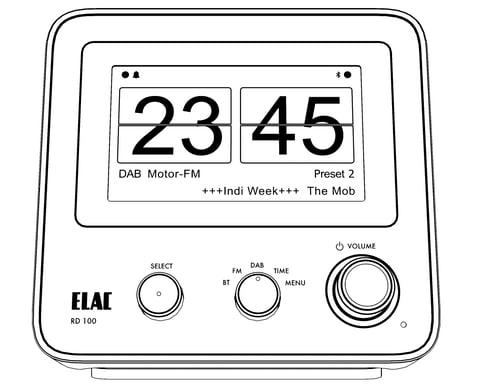
Use the center selector to choose DAB or FM and the right-hand control to turn on the radio. The firmware USB port is on the underside (not shown).
Use a USB flash drive to install the update, following the included PDF instructions.
- Locate the USB port on the bottom of the RD100. This port is intended only for firmware updates.
- Make sure the RD100 is turned on and set to DAB or FM. For users in the United States or Canada, select FM.
- Prepare a USB-A flash drive formatted FAT32. Extract the downloaded ZIP and copy its files directly to the drive’s root level, not inside a folder.
- Connect the prepared USB drive to the port on the bottom of the RD100. An audible beep indicates that the update is complete.
- The RD100 will restart automatically. You may need to perform a new station scan afterward.
What’s new in firmware 0.4.7
Version 0.4.7 updates the display brightness settings during use and in standby, including automatic brightness control. The following options and defaults apply to this release.
ON-state brightness level
- High - default after the update
- Normal
- Low
- Eco
OFF-state brightness level
- High - standby mode disabled
- Normal - standby mode disabled
- Low - standby mode disabled
- Eco - standby mode enabled; default after the update
Automatic brightness control
- Eco (standby mode enabled) - default after the update
- ON (standby mode disabled)
The display brightness can now be set individually for operating mode and standby mode. Alternatively, an Auto function is available, which automatically adjusts the display brightness to the ambient light level in each operating mode.
Need help?
If you are unsure how to prepare the USB drive or complete the update, contact ELAC Product Support before proceeding. Use instructions and firmware intended specifically for the RD100.